

How to scan and email a document from your iPhone or Android phone
Scan paper to one PDF on iPhone or Android, attach it so it arrives as a file, keep it under mail size limits and check the recipient can open it.
On an iPhone, open Mail, start a message and use Scan Document to attach the pages as one PDF; on Android, scan with Google Drive, save as PDF, then attach that file in Gmail. Keep the PDF under about 14 MB so it gets through 20 MB mail limits, and send it to yourself first to check it opens.
The catch is on Android. Attach a Drive scan in Gmail with the Drive option and it goes as a link, and Gmail checks whether your recipients have access before it sends. If you want the person to get the actual file, download the scan first and attach it from Files, as described below.
Send one PDF rather than photos
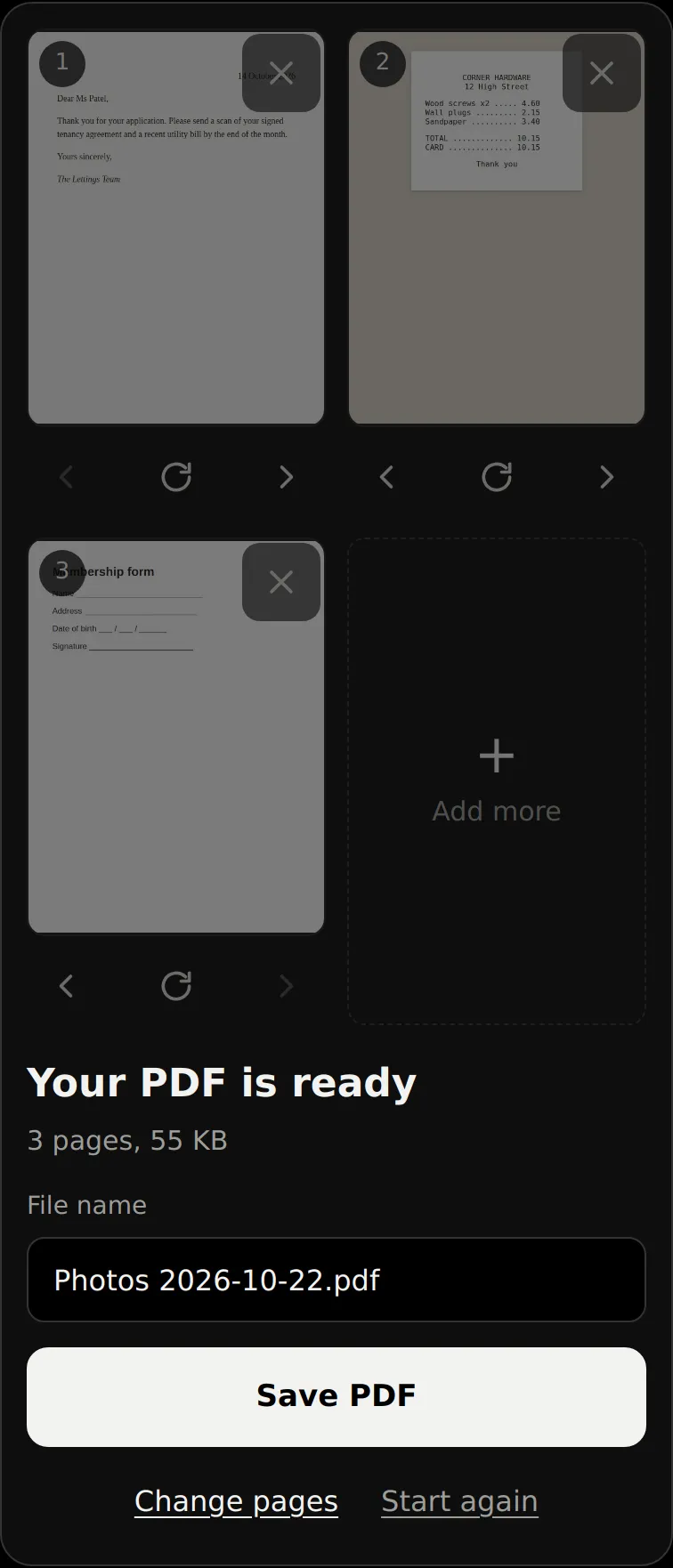
A scanned letter sent as photos arrives as one loose image per page, and the recipient has to work out the order. A PDF keeps every page in one file, in the order you scanned them. Gmail on Android also lets you select only up to five photos at a time, so a six-page document already means two rounds of picking.
If you've already taken photos of the pages, the JPG to PDF tool puts them into one PDF in the browser without uploading them.
Scan straight into an email on iPhone
In iOS 27, Mail can scan the paper itself and drop it into the message as a PDF, so you don't need Notes or Files at all. These steps follow Apple's iOS 27 guide.
- Open Mail and start a new message.
- Tap in the body where the scan should go, then tap the attachment button above the keyboard.
- Tap Scan Document.
- Hold the iPhone over the first page. It captures the page on its own once the page appears on the screen. If it won't fire, tap the shutter button or press a volume button.
- Tap Keep Scan if the page is sharp, or Retake if it isn't.
- Place the next page and repeat until every page is captured.
- Tap Save. The pages go into the message as one PDF.
To fix a page after saving, tap the scan in the message to crop, filter or rotate it, or delete it and scan again.
That scan is attached to that one message. If you're sending it once and won't need it again, Mail's Scan Document is all you need. If you'll need the same document again, scan it into Files instead and attach it with Attach File from the same menu, so the PDF stays somewhere you can find it.
If the message is too big for your email account, Mail tells you and offers to send the file with Mail Drop. The recipient then gets a download link, not an attachment, and the link lasts 30 days.
Scan with Drive and attach the PDF in Gmail
Scan the pages with the camera button in the Google Drive app, which our guide to scanning on Android walks through. At the save step, choose .pdf as the format rather than .jpg.
The scan is now in Drive, and that decides how it reaches the recipient. Gmail's Drive attach option sends it as a Drive file the person opens through your sharing settings. That's fine for someone you share with often. For an office, a landlord or anyone who'll save the file into their own system, send the PDF itself:
- Open the Google Drive app and find the scan.
- Next to the file name, tap More, then Download. If Download isn't there, Data Saver is on, and Drive hides the option while it's on. Turn Data Saver off in your network settings and try again.
- Open Gmail and tap Compose at the bottom right.
- Tap Attach at the top right, then Files.
- Tap the PDF you downloaded. It appears under the message as an attachment.
- Add the address and tap Send.
Google's own help names the Drive menu item two ways: Drive on one page and Insert from Drive on another. Both are the link route. Gmail Go, the lighter Gmail app, cannot send Drive attachments at all, so on Gmail Go use the download route above.
Size limits by email service
Each service counts size differently, and the smaller of your limit and the recipient's wins. Apple warns that the recipient's email service may have a smaller limit than yours.
| Service | Limit | What counts | In that service's own app |
|---|---|---|---|
| Gmail, personal | 25 MB | Total attachments | Gmail swaps the attachment for a Drive link |
| Gmail, work or school | Set by the admin | Set by the admin | Depends on the admin's settings |
| iCloud Mail | 20 MB | The whole message | Mail offers Mail Drop, up to 5 GB |
| Outlook.com | 20 MB | Attachments plus the email | Outlook shows an error |
| Exchange (business email) | 10 MB by default | Attachments plus the email | Outlook shows an error |
The Microsoft page lists Gmail at 20 MB as well. Google's own figure is 25 MB, but 20 MB is the safer number when you don't know what the other end uses.
A 20 MB limit doesn't mean a 20 MB PDF. Email carries attachments as text, and under RFC 2045 base64 turns every 3 bytes into 4 characters and adds a line break every 76. So a 14 MB PDF becomes a message of about 19 MB, and 14 MB leaves room either way. When you're writing to a business address on Exchange's 10 MB default, aim for about 7 MB, which encodes to roughly 9.6 MB. Exchange is the tight one. If your scan is bigger, our guide to making a PDF smaller to email covers shrinking it or sending a link.
Check the recipient can open it
Send the email to yourself as well, or open it from your Sent folder, and open the PDF the way the recipient will. Zoom in on the smallest print on the page, such as a reference number or a signature date. If you can't read it on your own screen, the person on the other end can't either. Rescan it now.
If Mail sent the scan with Mail Drop, tell the recipient to download the file if they'll need it later.
More on scanning documents with your phone
- Free scanner apps and how to check what free really meansYour phone already has a free scanner. Before you install another, check for scan caps, watermarks, ads, accounts, uploads, weekly plans and where files go.
- How to scan documents on Android with tools already on your phoneScan with Google Drive, Files by Google, the Pixel camera or a Samsung camera, find where each one saves, and get a Drive scan onto your phone.
- How to scan documents on iPhone with Notes or FilesScan paper with the iPhone's built-in scanner, find where the scan is saved, get a full PDF out of Notes and fix crooked or blurry pages.
- How to scan a passport on your phone so upload forms accept itWhich passport page to scan, how to keep the machine-readable lines sharp and avoid hologram glare, and the formats UK and US forms accept.
- How to scan receipts so they stay readable for taxScan receipts before thermal ink fades, split long till receipts into pages, file them by tax year, and see what HMRC and the IRS accept as a copy.
How we made this guide
Carbonado Apps wrote this guide with the help of AI research tools. We checked it against iOS 27 Mail, Google Drive and Gmail for Android help, November 2026, using the sources listed below. We make CrispCopy, and we wrote this to be useful whether or not you ever use it. If something here is wrong or out of date, email hello@carbonado.app and we'll correct it.
Sources (9)
- Add email attachments in Mail on iPhoneApple
- Mail Drop limitsApple
- Mailbox size and message sending limits in iCloudApple
- Send attachments with your Gmail message (Android phone & tablet)Google
- Send Google Drive attachments in Gmail (Android phone & tablet)Google
- Scan documents with Google Drive (Android phone & tablet)Google
- Download a file (Android phone & tablet)Google
- Reduce attachment size to send large files with OutlookMicrosoft
- RFC 2045: Multipurpose Internet Mail Extensions (MIME) Part OneIETF